Launchers
A launcher is the AntFlow component that runs workflows on your computing infrastructure. It retrieves jobs from AntFlow Server, executes them, publishes their outputs, and reports progress and results to the Server.
When to add a launcher
The default Helm deployment includes a Kubernetes launcher. Add another launcher when workloads need a different execution environment, either on the same infrastructure or elsewhere. For example:
- Target specific machines in the same cluster, such as GPU nodes or nodes with internet access, using a separately configured Kubernetes launcher.
- Run workflows on another Kubernetes cluster, a high-performance computing (HPC) system, or a local Linux host.
Each launcher uses one execution backend, called a runner in launcher configuration. The backend invokes a CWL execution engine. Multiple launchers can connect to the same Server to serve different execution environments.
The integrated launcher is already registered
The default Helm deployment registers its integrated Kubernetes launcher automatically. Manual registration is needed for additional launchers or when automatic registration is disabled.
For an additional launcher, register it using the UI or API instructions below to obtain its authentication token, then follow the deployment guide for your chosen infrastructure.
Register from the UI
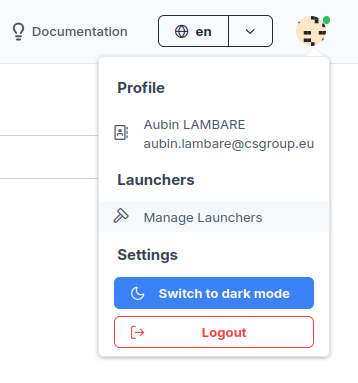
Open your user profile and select Manage Launchers, then New Launcher.
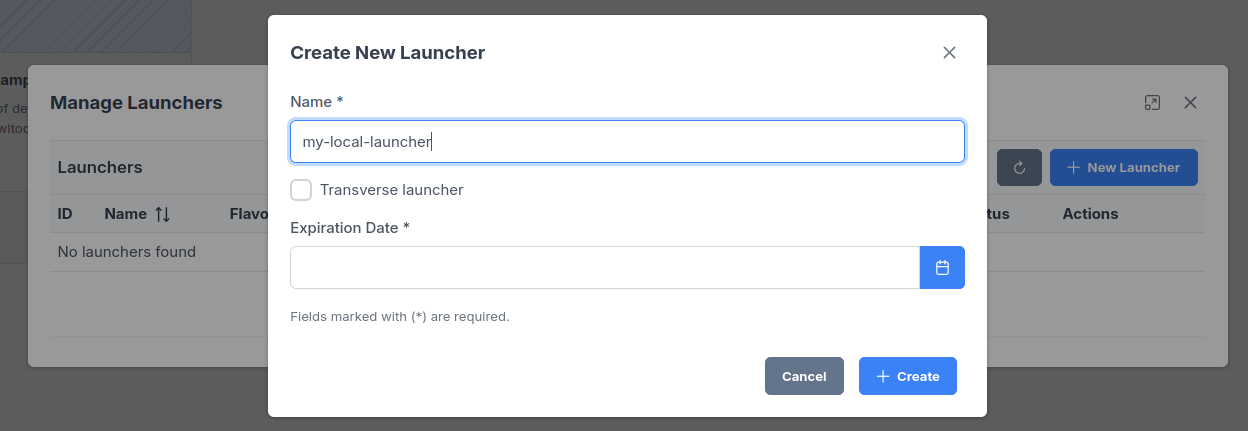
Enter a name, such as my-local-launcher, and an expiration date, then click Create.
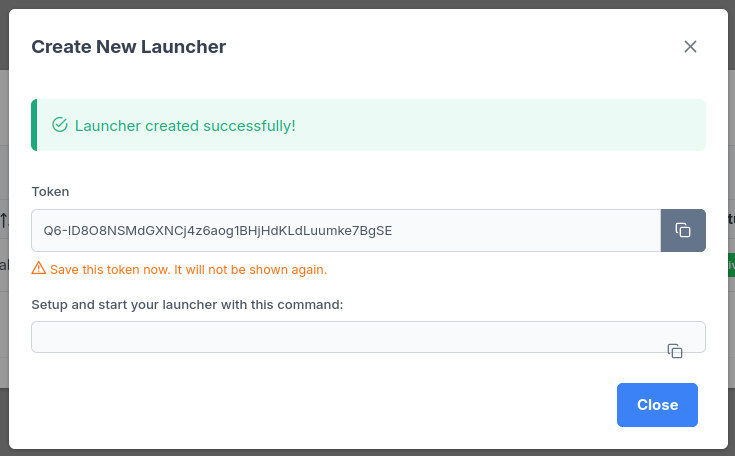
Save the token before closing
Copy and save the issued token securely before clicking Close. It cannot be retrieved later; if it is lost, rotate it or recreate the registration.
Register through the API
First follow Access the API to set API_URL
and load your user credential into TOKEN. Choose an instance where you are
authorized to register a launcher, not the demo unless its operator permits it.
The request below creates a personal launcher registration, not a running worker.
Enter a name and a future ISO 8601 expiration date, including a time zone:
read -r -p "Launcher name: " LAUNCHER_NAME
read -r -p "Expiration date (ISO 8601, including time zone): " EXPIRATION_DATE
jq -n --arg name "$LAUNCHER_NAME" --arg expiration "$EXPIRATION_DATE" \
  '{name: $name, expiration_date: $expiration, is_transverse: false}' \
  > launcher-registration.json
curl --fail --silent --show-error --request POST \
  "$API_URL/launchers/" \
  --header "Authorization: Bearer $TOKEN" \
  --header 'Content-Type: application/json' \
  --data-binary @launcher-registration.json
name is required. Personal launchers also require expiration_date and cannot
specify groups. For a transverse launcher, set is_transverse to true;
expiration_date is optional. Only administrators can register transverse launchers.
Save the returned token
The response contains the launcher's credential. Save it in your approved credential store and do not log or share the response. This credential is separate from the user API token. It cannot be retrieved later; if it is lost, rotate it or recreate the registration.
Shared launchers and groups
A personal launcher is associated with its registering user. A transverse launcher
is shared rather than owned by one user. As an administrator, set
is_transverse: true during registration and specify the authentication groups
allowed to use it. Omit expiration_date for a token with no expiration:
A shared launcher with no groups is available without a group restriction.
With groups set, a user must belong to at least one matching group. Configure
the identity provider to include those groups in the access token; see
Group claims. The Helm value
configs.oidc.groups_pathlike: true normalizes launcher group entries to paths,
but group names must still match the token claims.
Group access is only one eligibility check. The launcher must also be active, have an unexpired token, and support the workflow's requested flavors. See Execution policy.
Choose a launcher version
Identify the version of AntFlow Server the launcher will connect to; ask your instance's administrator if needed. In the launcher changelog, choose the most recent launcher release whose Requires entry includes that Server version.
Use that release version as the container image tag, or check out that release when installing from source.
Choose your execution infrastructure
With your registration token saved, choose the infrastructure where your
workflows will run and follow its deployment guide. Supply the registration
token as APP_TOKEN and configure the Server API URL. Each guide lists its
requirements and deployment steps.
| Infrastructure | Execution engine and requirements | Runner setting | Guide |
|---|---|---|---|
| A local Linux host | cwltool with Docker or rootless Podman. | local |
Local |
| A Kubernetes cluster | Calrissian with shared writable storage. | k8s |
Kubernetes |
| An HPC system with Slurm | Toil and Singularity on an HPC submission host. | toil_slurm |
Toil / Slurm |
The cwl_runner setting selects the backend. supported_flavors advertises the
execution capabilities used to match jobs; it does not switch backends within
a launcher. See Execution policy.
For Kubernetes, use the repository chart's launcher-only topology. The chart reference describes how to supply the token through a Kubernetes Secret.
Job log archiving
By default, a launcher uploads job logs after execution. This applies to all
runners: local, Kubernetes, and Toil / Slurm. Log uploads are independent of
workflow output publication: a workflow with outputs: {} still has its logs
uploaded.
To disable job-log uploads for a launcher deployed with Helm, set:
For a launcher using a TOML settings file, set:
This applies to every job handled by that launcher. It does not disable workflow output publication, the launcher's own service logging, or the job status and progress updates sent to AntFlow Server. It also does not retain local files that would otherwise be removed during cleanup.
To run a workflow without automatic result uploads, see Workflows without declared outputs.
Customize the setup command shown in the UI
This optional administrator setting changes the instructions displayed when a launcher token is issued, not launcher configuration or execution on the user's machine.
With the Helm chart, set configs.launcherSnippet to customize the
command shown when a launcher token is issued, for example to include
environment-specific setup. This maps to SERVER_CONFIG.launcherSnippet in
the browser's config.js and does not require rebuilding the UI image.
AntFlow replaces the first <api-url> and <token> placeholders with the
configured API URL and the newly generated token. Use each placeholder once.
The Helm chart defaults launcherSnippet to an empty string, which leaves
the command empty. Set it explicitly to display the command below; an empty
value does not select the UI's built-in fallback.
configs:
  launcherSnippet: |-
    antflow-launcher config --api-url <api-url> --token <token>
    antflow-launcher run
Do not put tokens or credentials in the template: the browser configuration is public. The issued token is substituted in the registration dialog.